Untertitel für Videos: A Fast, Accessible Workflow


The quickest path to reliable untertitel für videos runs through three steps: auto-transcribe the audio with an online tool, manually review the text for names and sound cues, then export as .srt or .vtt. Do the review, and you end up with a caption file ready to upload or a video with captions burned in.
TL;DR:
Manual review of auto-generated transcripts is essential to ensure names, sound cues, and punctuation meet accuracy standards, especially for professional content.
Choosing the right subtitle format depends on the platform; .srt is universally compatible, while .vtt offers styling options for web players.
Accessibility compliance requires adding speaker labels and sound descriptions, adhering to WCAG standards, and ensuring text contrast and readability.
Basic tools suit quick social clips, but complex or regulated projects benefit from human-checked workflows or professional production services.
Full-service providers deliver synchronized, styled, and tested captions across formats, eliminating the need for DIY tools and reducing compliance risks.
Table of Contents
How Do You Add Subtitles to a Video Step by Step?
Adding subtitles or, as it’s often called in German-speaking markets, Untertitel für Videos, follows a workflow that barely changes across tools. The details shift depending on which platform you use, but the sequence stays the same.
Clean up your audio first. Trim background noise, cut dead air, and confirm the spoken language before you upload anything. Auto-transcription tools guess the language automatically, but a clear audio track is what actually drives accuracy.
Upload the video or paste a link into a browser caption editor. Most tools accept direct uploads or a URL and then run automatic transcription in the background, usually within a few minutes for a short clip.
Edit the transcript by hand. This is where names get fixed, punctuation gets cleaned up, speaker labels get added for multi-person conversations, and bracketed sound descriptions like [phone rings] get inserted for SDH (Subtitles for the Deaf and Hard of Hearing).
Choose your export format. Pick .srt if you need broad compatibility across YouTube, Vimeo, and most editing software, or .vtt if the video lives in an HTML5 web player and you want styling control. Burn the captions into the video only if the platform genuinely requires hardcoded text.
Test the file before you call it done. Load the caption file into a media player or the actual target platform and check for timing drift or awkward line breaks. Re-export if something’s off.
Platforms like Clipchamp document this exact flow in their support pages, walking through autocaption generation and the manual edit pass that follows. That single review step is what separates a usable caption file from one that embarrasses you in a client meeting.
If you’re producing video for a business audience rather than a personal channel, the stakes for accuracy go up considerably. A corporate video production with captions that misspell an executive’s name or garble a product term reflects poorly on the whole project, not just the subtitles.
Which Subtitle Tool or Workflow Fits Your Project?
Not every caption job needs the same tool. Matching the workflow to the stakes of the content saves time and prevents you from either overpaying for precision you don’t need or underdelivering on accuracy you do.
Accuracy needs vary by use case. A quick social clip can tolerate a small error rate; broadcast or training content usually can’t, and that gap is exactly why human review exists as a separate step rather than an optional extra.
Language and translation scope matters. A single-language YouTube video needs a different tool than a training series that has to ship in five languages simultaneously.
Export compatibility determines your options. Check whether the tool exports .srt, .vtt, or FCPXML, and whether it plugs directly into your editing software or content management system.
Privacy and data retention rules apply to corporate footage. If you’re captioning internal training or client-facing video, check how long the tool retains your uploaded audio and whether it meets GDPR expectations for your organization.
Styling capability separates basic tools from brand-ready ones. Some platforms only offer plain burned-in text; others include brand kits with font and color control that match your existing visual identity.
Pro Tip: Before committing to a tool for a multi-video project, run one test clip through the entire pipeline, including export and playback on the actual target platform. Formatting issues that look fine in the editor sometimes break once uploaded.
Which File Format Should You Download: .srt or .vtt?
The format choice comes down to where the video lives. .srt is the universal standard, readable by YouTube, Vimeo, and nearly every video editor on the market. .vtt handles the same basic job but adds styling and positioning control, which makes it the better pick for HTML5 web players embedded on a website.
Save every file in UTF-8 encoding and start .vtt files with the literal header text “WEBVTT,” per Microsoft’s caption formatting guidance.
Include the language code in the filename, such as MyClosedCaptions.en.vtt, so multi-language projects don’t get mixed up.
If your delivery platform truly needs hardcoded text, export a burned-in MP4, but default to closed captions whenever the platform supports them.
Test the sidecar file by loading it alongside the video in VLC or a staging environment before final delivery.
What Accessibility Rules Should Every Caption Follow?
Simple subtitles and SDH aren’t the same thing, and treating them as interchangeable is where most creators fall short. Plain subtitles transcribe dialogue. SDH adds speaker identification and bracketed sound cues like door slam or music so deaf and hard-of-hearing viewers get the same narrative context hearing viewers pick up from ambient sound.

WCAG 2.2 sets the baseline: recorded audio needs captions, those captions need speaker identification when multiple people talk, and relevant sound descriptions need to be present rather than assumed. Automated tools rarely catch this on their own, which is exactly why the manual pass in your workflow isn’t optional if accessibility compliance matters.
Timing and readability rules matter just as much as content accuracy. Broadcast standards from public broadcasters call for 12 to 15 characters per second reading speed, a maximum of two lines on screen at once, and 37 to 42 characters per line. Around fast cuts, professionals build in roughly a one-second buffer so text doesn’t flash and vanish before a viewer can read it.
Visual presentation rounds out the checklist: minimum 4.5:1 contrast between text and background, scalable font sizing, sans-serif typefaces, and placement that never covers critical on-screen information like a lower-third graphic or product name.
Checklist item | Standard to hit |
Reading speed | 12 to 15 characters per second |
Line length | 37 to 42 characters per line |
Lines on screen | Maximum of two |
Contrast ratio | At least 4.5:1 |
Speaker ID and sound cues | Required for SDH compliance |
One detail worth flagging on its own: automated captions alone usually fail WCAG checks because they skip speaker labels and sound descriptions entirely. That single gap is the most common reason a “captioned” video still isn’t actually accessible.
Which Workflow Type Matches Your Project Size?
Different projects call for different tools, and picking the wrong category wastes time either way.
Browser editors work best for a single social clip: auto-transcribe, adjust styling, export, done in under fifteen minutes.
Editor-integrated, text-based tools let you edit the transcript and the video timeline together, which speeds up interview or podcast-style content where cutting text and cutting footage are the same action.
Batch and translation platforms make sense once you’re managing a video library or delivering the same content in multiple languages at once.
Human-checked caption services become necessary for broadcast, legal, or regulated content where an accuracy error carries real consequences.
Modern tools can hit strong accuracy on clean audio, but that roundup still recommends a human check for names, jargon, and SDH elements. For a quick social clip, a browser tool alone is fine. For anything compliance-bound, budget time for the review pass regardless of which tool generates the first draft.
When Does It Make Sense to Bring in a Production Team?
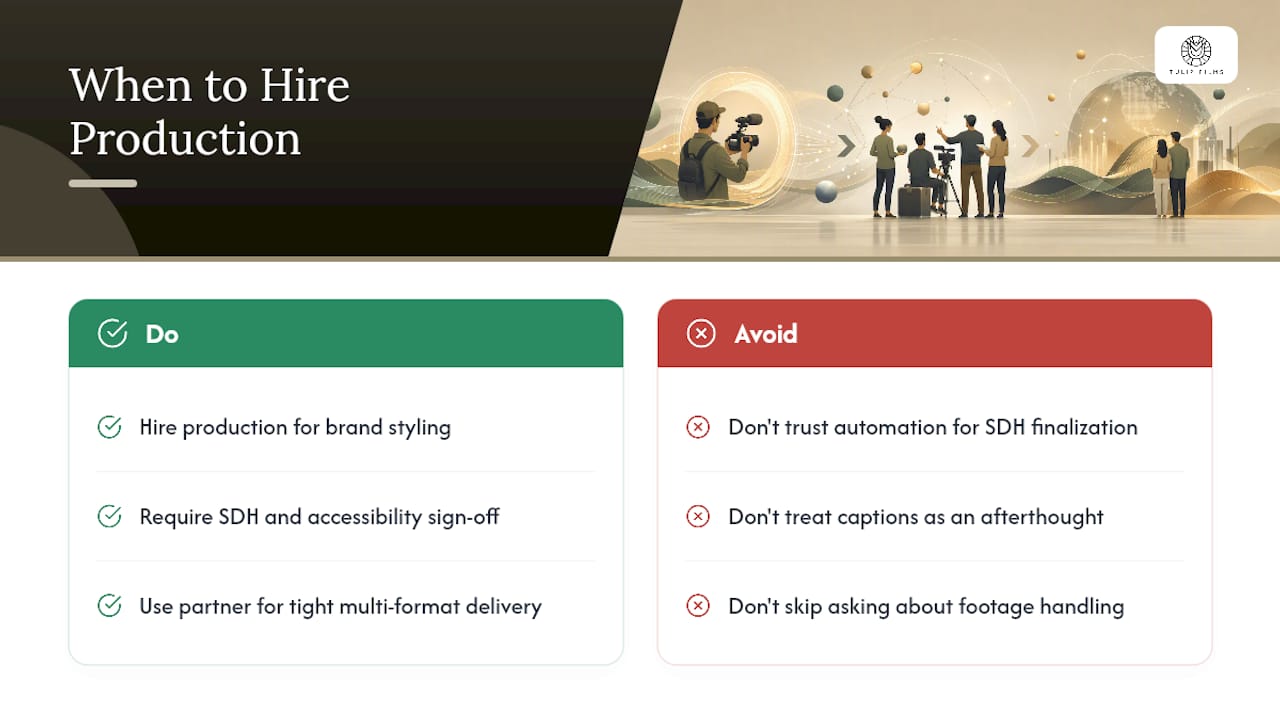
Automated tools handle volume well. They struggle with brand-compliant styling, strict accessibility sign-off, and tight-deadline multi-format delivery all at once, which is where a production partner earns its keep.
Tulipfilms builds SDH-capable captions into full production delivery rather than treating subtitles as an afterthought, covering everything from filming through final export across formats. If you’re evaluating any vendor for this kind of work, ask three questions before you commit: can they show a sample SDH caption file, what’s their actual turnaround time, and what happens to your footage once the project wraps.
— Pieter
Get Professional Captions Built Into Your Video Delivery
Tulipfilms is the alternative to piecing together captions yourself across three different tools. Every production includes SDH-ready caption files, .srt and .vtt exports, and burn-in on request, delivered as part of the finished video rather than a separate task you handle afterward.
[
That means no juggling browser editors against your deadline, no guessing whether your caption file meets WCAG 2.2, and no separate vendor for accessibility sign-off. Whether it’s a corporate video project or a client-facing campaign, captions come out synced, styled to your brand, and tested across formats before delivery. Browse the production portfolio to see finished examples, or check current pricing to get a quote for your next project.
Sources
Recommended
